



























Given that individual range objects are ubiquitous in VBA programming, we encounter the obvious question as to whether two range objects, Rg1 and Rg2, actually represent the same identical collection of cells on a worksheet. Amazingly, in spite of the vast complexity of possible range specifications, a quite simple approach can answer that question in an instant:
Requirement #1: If the two ranges are identical, the number of unique cells in each range must be identical.
Requirement #2: The intersection of those two ranges must have that identical number of unique cells because no cells were excluded in determining the intersection. (Alternatively, this second requirement could be based on the union of the two ranges with slightly different wording. However, evaluating the intersection results in better performance for non-identical ranges.)
A small, but robust function IsIdenticalRange utilizing this approach is included below.
Critical to implementing the two requirements above is the necessity for the fast and accurate counting of cells. Unfortunately, as will be shown below, Excel does not provide a reliable mechanism for counting unique cells in multi-area ranges. The companion function CountUniqueCells (included below) can handle ANY range specification up to 1.5 million cells, which is more than enough for any small to medium business.
BACKGROUND
What is a Range Object?
In Excel’s VBA Object model, a range object consists of a group of cells on the same worksheet that are of special interest to us at a given moment. In a table of sales orders, a range object consisting of a particular row would represent all of the various details of a unique sales order. On the other hand, a range object referring to a particular column would represent a specific parameter, like customer ID, across all of the sales orders.
In VBA programming, a range object is often a single cell (Ex: K9, which might be the current input cell or perhaps the result returned by a Range.Find statement) or a single rectangular group of cells like RgR=Range(“B2:D11”) as in Figure 1.
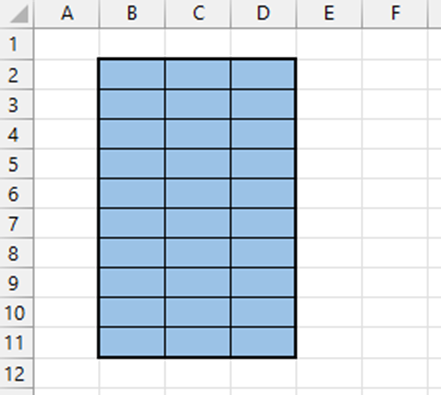
Figure 1
Such a rectangular group is called an area. A single area can be as small as a single cell or a portion of a single row or column or even as large as the entire worksheet (over 17 billion cells). More generally, a range can consist of multiple rectangular areas which may overlap one or more of the other areas. Thus, The VBA Object Model speaks of a particular Range as being a Collection of its Areas. These areas sprinkled around the worksheet may wholly or partially overlap, such as the Range(“C4:C9,C4:G4,C9:G9”) in Figure 2, where the specification consists of 3 areas separated by commas. We’ll call this C-shaped range RgC.
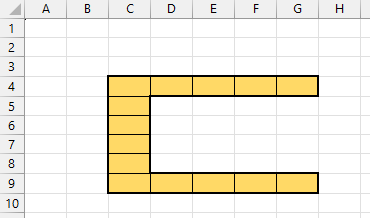
Figure 2
Counting Cells with Excel can be Tricky
Of immediate interest in this article is the total number of cells in a range. For this, we are in the naïve habit of relying on the Range.Cells.Count property, oblivious to its risks. We must be careful. The “number of cells” is a disarmingly simple concept, but with two different interpretations. For our case, considering the entire range as a whole, we seek the number of unique individual cells. As an example, perhaps we need to visit each cell just once to perform some operation, like adding $1000. Unfortunately, Excel’s implementation of Count delivers a different interpretation, one that is oblivious to overlapping areas: Excel visits each area just once and treat all the cells in that area. How many cells must be visited? Thus, Excel’s algorithm for evaluating that simple number is seriously flawed. It works fine for a single rectangular area precisely defined by its opposite corners. In many other cases, it overstates the number. Why?
Excel’s algorithm does not intelligently comprehend the Big Picture of a more complex range. Instead, it blindly plods thru the simple math inherent in the range specification. Using Figure 2 as an example, we can easily and correctly count 14 cells … 5 on the top, 5 on the bottom and 4 connecting the top and bottom. However, Excel’s algorithm blindly proceeds thru the 3-part range specification Range(“C4:C9,C4:G4,C9:G9”) adding up the 6 cells in the first area and 5 cells each in the next two areas giving 16 because it counted the overlapped cells C4 and C9 twice. Try it for yourself in the Immediate window:
Set RgC = Range("C4:C9,C4:G4,C9:G9")
Print RgC.Cells.CountIf Excel’s Range.Cells.Count is unreliable, how can we determine the correct cell count? One approach would be to adjust Excel’s Count by subtracting the number of overlapped cells, but reliably counting those cells gets very messy as the number of areas increases. What we need is a better way to count cells.
Introducing The CountUniqueCells Function
To reliably count the cells in any range, use the function CountUniqueCells shown below. Since Excel’s CountLarge property is both fast and accurate for single-area rectangular ranges, this function makes use of it for that special case. For multi-area ranges, it traverses thru the entire range specification, but eliminates the double counting by utilizing a dictionary (which requires enabling the VBE Tools reference to Microsoft Scripting Runtime):
Function CountUniqueCells(ByVal Rg As Range) As Variant
'Returns true count of individual cells in the range regardless of content,
'  formatting, filtering, hiding or merging.
'Ex:  The 2-area Range("A2:C2,B1:B3") contains 5 cells (not 6!)
'Paul Deaton   04/18/26   859-396-6150   PDeaton@ExcelSpreadsheetService.com
'NOTE 1: Requires enabling Microsoft Scripting Runtime in VBE->Tools->References
'NOTE 2: If Rg is Nothing, returns 0, rather than throwing an annoying error.
'NOTE 3: For all single-area ranges: Uses Range.Cells.CountLarge
'NOTE 4: For all  multi-area ranges: Uses dictionary processing ~1.3 million cells/min
'  Hence, for practical reasons, an upper limit of 1.3 million cells is imposed and
'  the function immediately returns Range.Cells.CountLarge, but with a NEGATIVE sign.
Dim cell As Range, dict As Object, vRawCellCount As Variant
Const LIMIT_MultiAreaCellCount As Long = 1300000
    If Rg Is Nothing Then
        CountUniqueCells = 0
    ElseIf Rg.Areas.Count = 1 Then
        CountUniqueCells = Rg.Cells.CountLarge    'Much faster for very large ranges
    Else
        vRawCellCount = Rg.Cells.CountLarge
        If vRawCellCount > LIMIT_MultiAreaCellCount Then
            'Impractical runtime so throw error value
            CountUniqueCells = -1 * vRawCellCount
        Else
            'Reasonably sized multi-area range
            Set dict = CreateObject("Scripting.Dictionary")
            For Each cell In Rg.Cells
                dict(cell.Address) = 1
            Next cell
            CountUniqueCells = dict.Count
        End If
    End If
End FunctionAnother improvement within this function: If the range is empty (Nothing), it quietly returns 0 instead of throwing an annoying error.
Introducing Excel’s Intersect Function
The next useful concept is Excel’s Intersect function which determines the population of cells that are common to each of up to 30 complex, multi-area ranges. This is accomplished by applying the same concept as an intersection in the Venn Diagram used in set theory. To be a member of the intersection, a cell must belong to every range. Any cell not appearing in every range is excluded, leaving only the cells common to all ranges. Furthermore, each cell should only be mentioned once!
Here again Excel’s implementation leaves something to be desired. While Excel correctly builds the population of cells common to each range, it takes a shortcut that often ignores overlap within each range. For example:
Set RgR = Range("B2:D11")
Set RgC = Range("C4:C9,C4:G4,C9:G9")
Print Intersect(RgR,RgC).Cells.Countincorrectly displays 10. Meanwhile, as shown in Figure 3, the red intersection of RgR and RgC clearly consists of just 8 cells. Excel has again counted cells C4 and C9 twice.
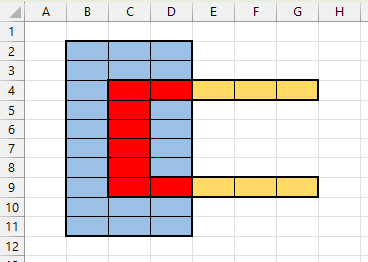
Figure 3
From its very definition, one can conclude that the intersection of multiple ranges is never larger than the smallest range. In fact, it is usually smaller than the smallest range. If we encounter the special case where it is neither larger nor smaller than the smallest range, but, in fact, equals the smallest range, we can conclude the ranges are identical. (NOTE: To be clear, all comparative terms, like “larger” and “smallest”, apply only to the numerical total of cells in the population-of-interest regardless of their individual sizes on the screen. A cell is a cell regardless of its size. We are NOT referring to the cell’s visual real estate determined by the varying row heights and/or column widths of your actual spreadsheets. To avoid any such confusion, all cells in the Figures are of equal size.)
Introducing Excel’s Union Function
Whereas the Intersect function is exclusionary (excluding cells not common to all ranges), Excel’s Union function is inclusive. It determines the population of cells that are mentioned at least once in any of up to 30 complex, multi-area ranges. This is accomplished by applying the same concept as the union in a Venn Diagram. No cell in any of the ranges is excluded. However, each cell should only be mentioned once!
Once again Excel’s implementation leaves something to be desired. While Excel correctly builds the population of cells in any of the ranges, it takes a shortcut that often ignores overlap within each range. For example:
Set RgR = Range("B2:D11")
Set RgC = Range("C4:C9,C4:G4,C9:G9")
Print Union(RgR,RgC).Cells.Count       '(incorrectly displays 40)
Print Union(RgR,RgC).Address           '(displays $B$2:$D$11,$C$4:$G$4,$C$9:$G$9)
' Excel merely adds the individual areas: 30 + 5 + 5As seen in Figure 4, the correct answer is 36. Analyzing the union’s address that Excel evaluated, we see that Excel double counted 4 cells: C4, D4, C9 & E9.
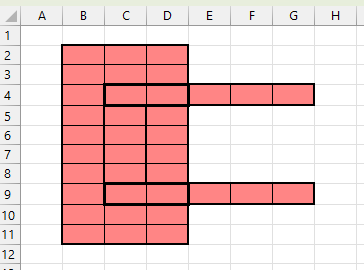
Figure 4
From its very definition, one can conclude that the union of multiple ranges is never smaller than the largest range. In fact, it is usually larger than the largest range. If the unique cell count matches the largest range, all the ranges are identical.
Application to Determining whether Two Ranges are Identical
Consider any two ranges, Rg1 and Rg2, that may be simple or exceedingly complex. If they are identical then:
CountUniqueCells(Rg1) = CountUniqueCells(Rg2)
Otherwise, the ranges are not identical and we have our answer. If the counts match, we must now test the intersection. Because the intersection of the two ranges typically excludes some cells, the Intersect population of cells is usually less than the largest range. If the ranges are identical then:
CountUniqueCells(Rg1) = CountUniqueCells(Intersect(Rg1,Rg2))
And we now have our answer … either the ranges are identical or they are not.
Introducing the Function IsIdenticalRange(Rg1,Rg2)
The custom Excel function below implements this concept. Because the application of the Cells method to a Nothing range throws an error, most of the logic is necessary to intercept Nothing ranges before they can throw an error. This is typical of programming in any language: Just a few lines of code are necessary to perform the crux of the desired result, but many more lines are necessary to handle starting, stopping, preventing errors and handling the errors that do occur.
Function IsIdenticalRange(ByVal Rg1 As Range, _
                          ByVal Rg2 As Range, _
                          Optional BothNothingResult As Boolean = True) As Boolean
'Returns True for identical ranges; False otherwise.
'If both Rg1 and Rg2 are Nothing, returns BothNothingResult (Def=True)
'Paul Deaton  04/18/26  859-396-6150  PDeaton@ExcelSpreadsheetService.com
'Basis:  For identical ranges, the unique cell counts for Rg1, Rg2, Intersect() and Union()
'        will be the same, but testing Union() unnecessary if the others are the same.
Dim vCtRg1 As Variant, vCtRg2 As Variant
    IsIdenticalRange = False
    'Test both are Nothing
    If (Rg1 Is Nothing And Rg2 Is Nothing) Then
        IsIdenticalRange = BothNothingResult    'and we're done!
    'Verify only one range is Nothing
    ElseIf Rg1 Is Nothing Or Rg2 Is Nothing Then
        'Return False and we're done!
    'Verify both on same worksheet in same workbook
    ElseIf Not (Rg1.Parent Is Rg2.Parent) Then
        'Return False and we're done!
    Else    'Typical case:    Two existing ranges on same worksheet
        vCtRg1 = CountUniqueCells(Rg1)
        vCtRg2 = CountUniqueCells(Rg2)
        Debug.Print "CountUniqueCells for Rg1: " & Format(vCtRg1, "#,##0"), "Rg2: " & Format(vCtRg2, "#,##0")
        If vCtRg1 < 0 Or vCtRg2 < 0 Then
            Beep
            MsgBox "RUNTIME ERROR:TOO_MANY_CELLS     As a safeguard, fct 'IsIdenticalRange' will return 'False'." & vbCr & vbCr _
                     & "In custom fct 'IsIdenticalRange', one or both multi-area ranges passed to fct 'CountUniqueCells'" _
                     & " exceeds its current practical runtime limit.    Contact your Excel Technical Support for assistance."
        ElseIf vCtRg1 <> CountUniqueCells(Rg2) Then
            'Return False and we're done!
        ElseIf vCtRg1 <> CountUniqueCells(Intersect(Rg1, Rg2)) Then
            'Return False and we're done!
        Else
            IsIdenticalRange = True
        End If
    End If
End FunctionThe routines included here provide a fast and accurate solution to determining whether two ranges on the same worksheet are identical. They are suitable for all spreadsheets regardless of the worksheet size. For a rapid response from CountUniqueCells, single-area ranges can be of ANY size, but multi-area ranges within the worksheet ought to be less than 200,000 cells. Larger multi-area ranges of 1.3 million cells may take up to 1 minute in the CountUniqueCells routine.
For large businesses with big data, an advanced approach to counting cells is available that can handle all 17 billion cells in less than 1 second.
Range comparisons are an important diagnostic tool when tracing data errors, merging files and the like. I help clients quickly resolve these kinds of Excel range issues with robust solutions. If you want help, you can contact me via email at: PDeaton@ExcelSpreadsheetService.com (or call 859-396-6150 if you prefer).
Leave a Reply